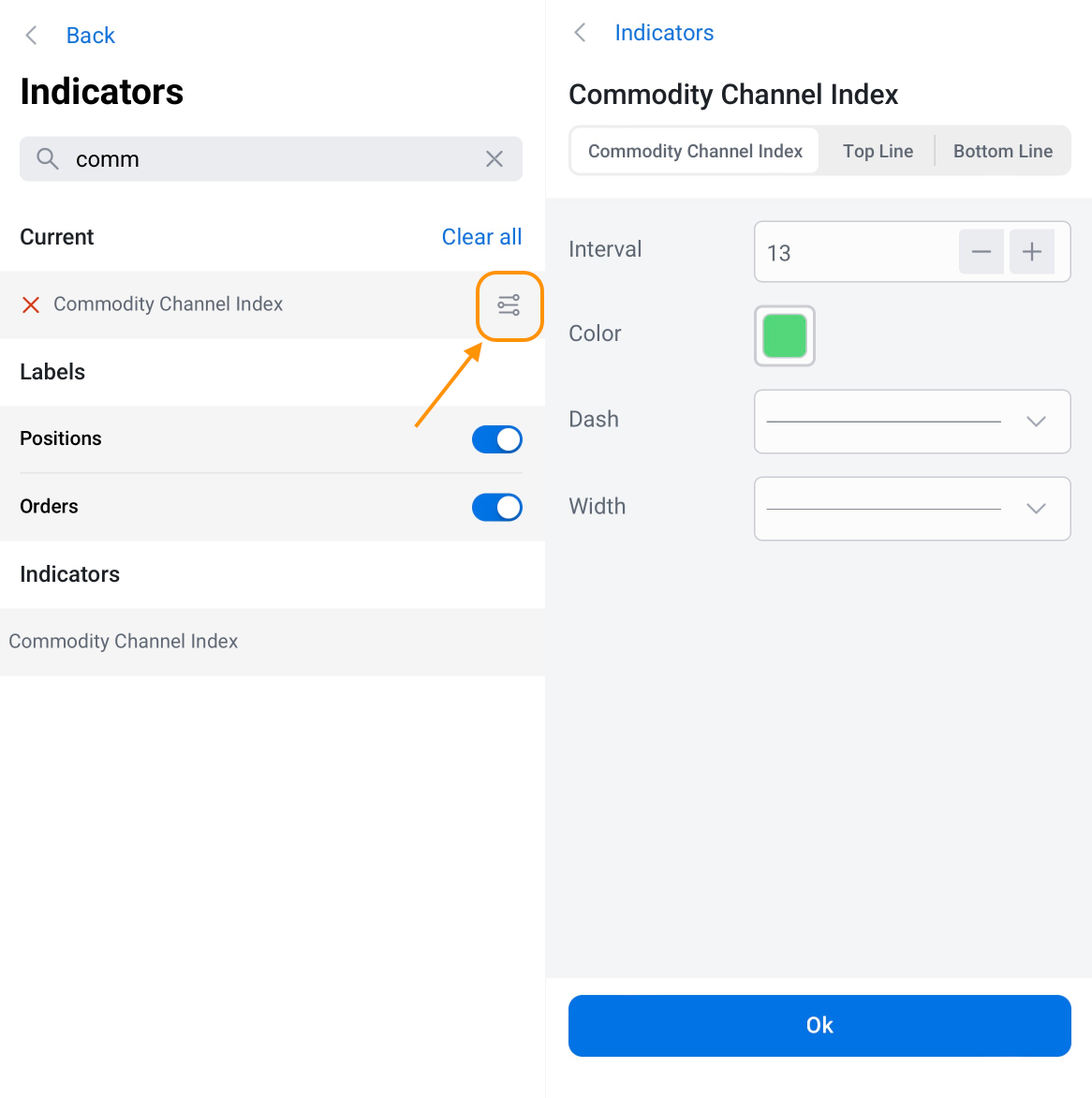
Open a financial instrument to start exploring the chart. Use the Crosshair tool (the first icon in the upper-right corner) to select a specific date. In the lower-left corner of the screen, you can see the following information:
- Date
- Open: the opening price for the trading session
- High: the highest price for the trading session
- Low: the lowest price for the trading session
- Close: the closing price for the trading session
- Volume: the trading volume for this trading session
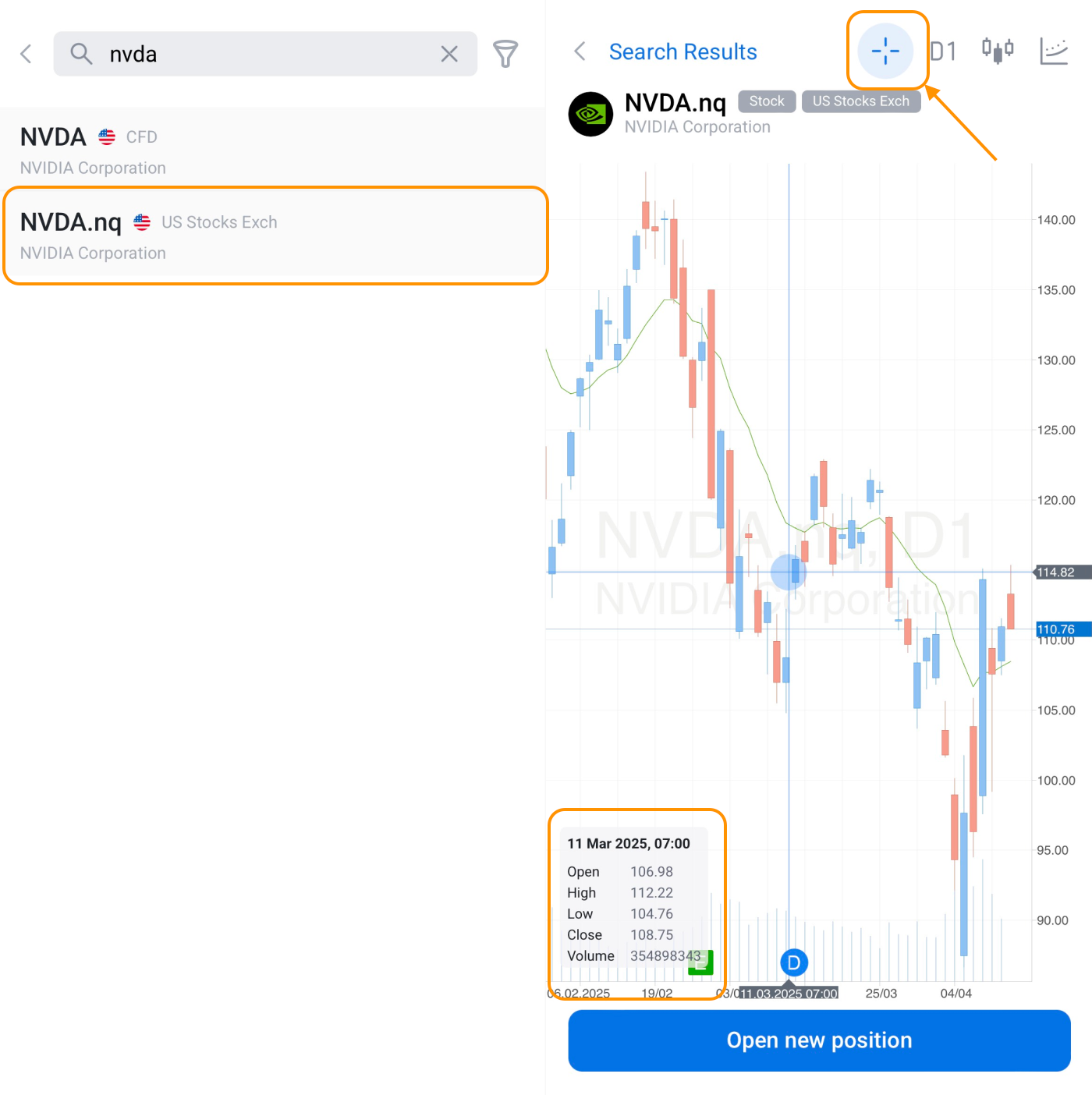
Use the Timeframe tool (the second icon in the upper-right corner) to choose a timeframe for analysis (1 minute, 5 minutes, 30 minutes, 1 hour, 4 hours, 1 day, 1 week, or 1 month).
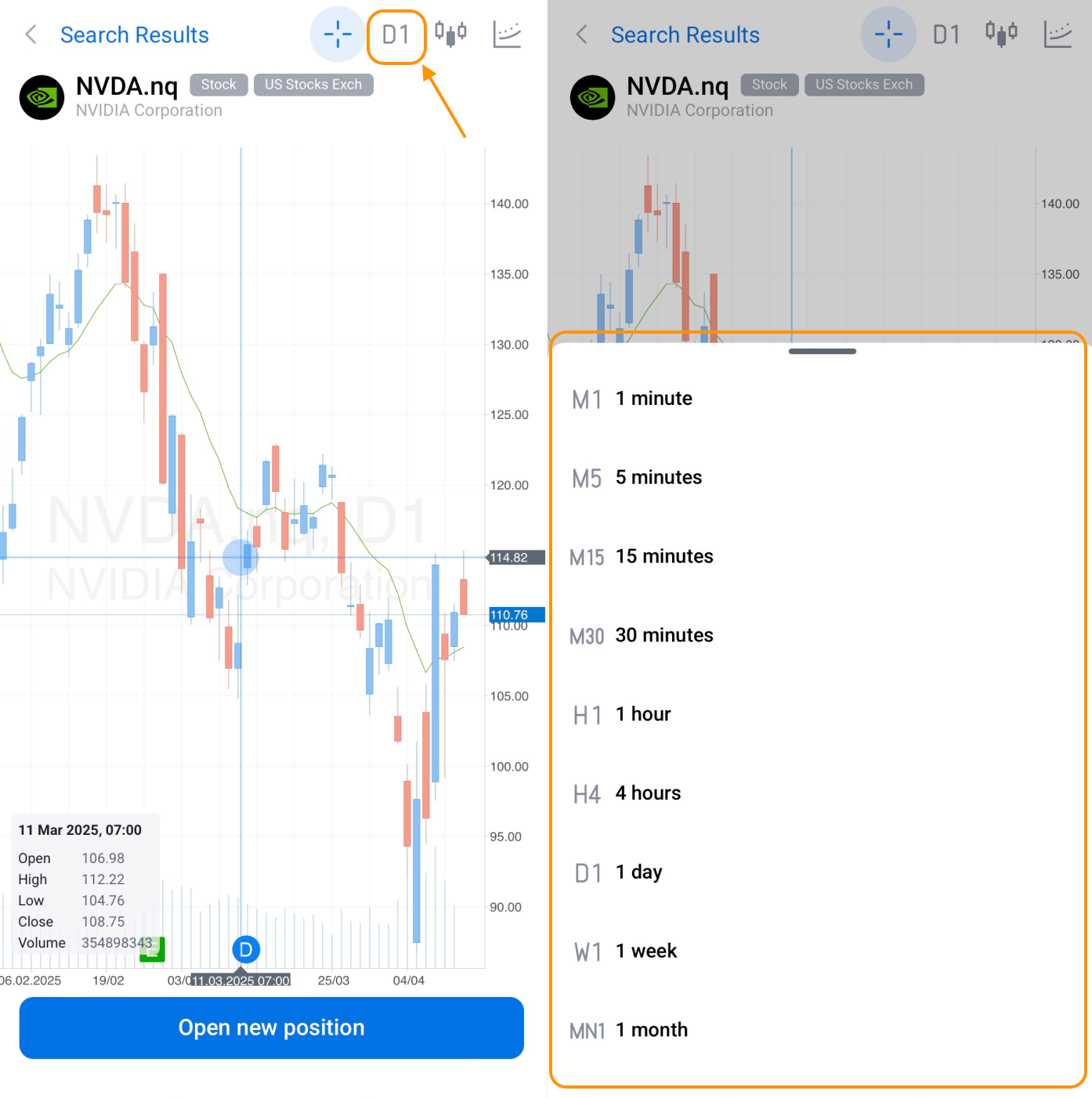
Use the Chart type tool (the third icon in the upper-right corner) to switch between candlesticks, bars, lines, areas, or Heikin-Ashi.
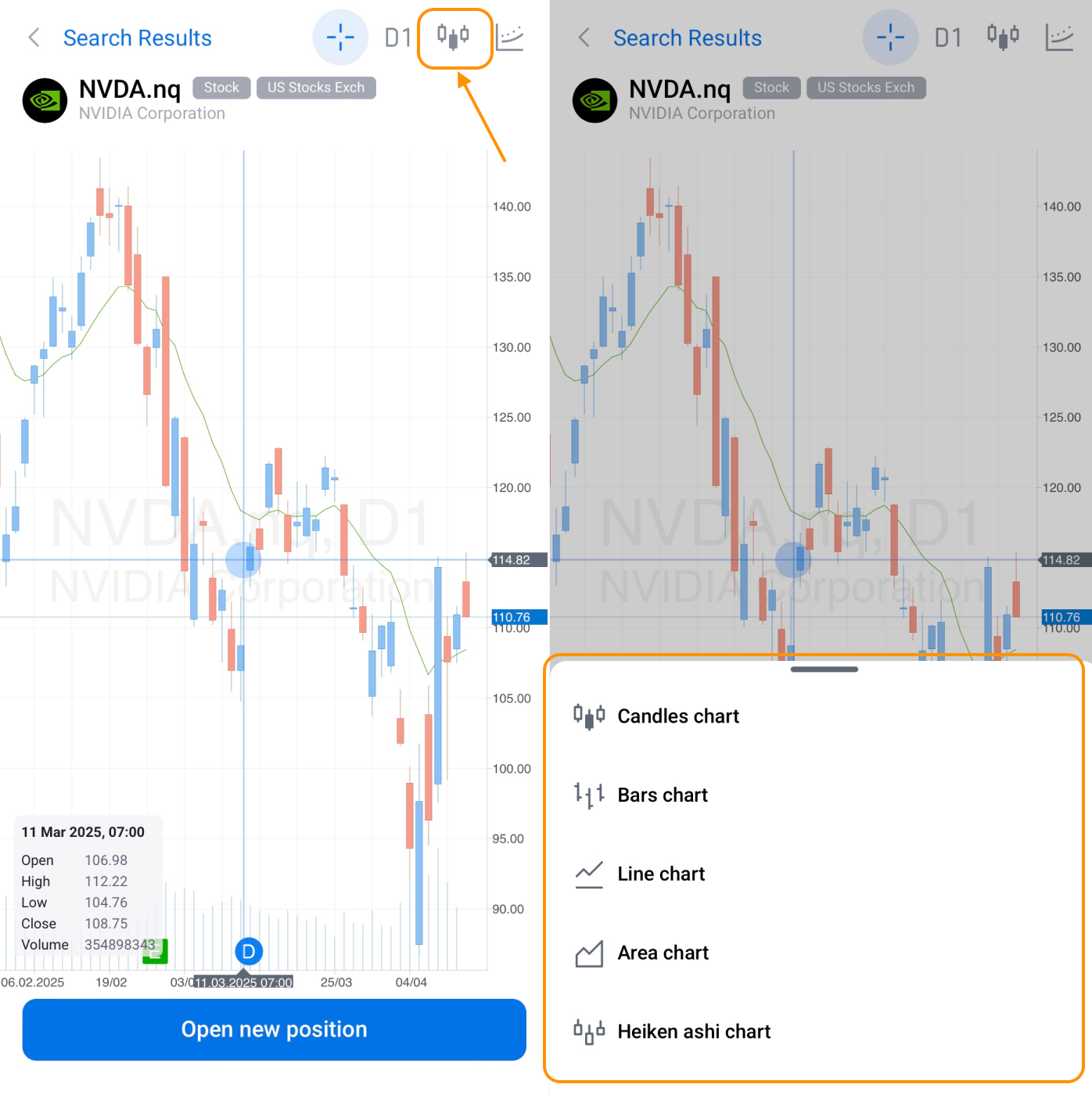
Tap the fourth icon in the upper-right corner to add a technical indicator to the chart. Use the search field to find the desired indicator, or browse through the list below.
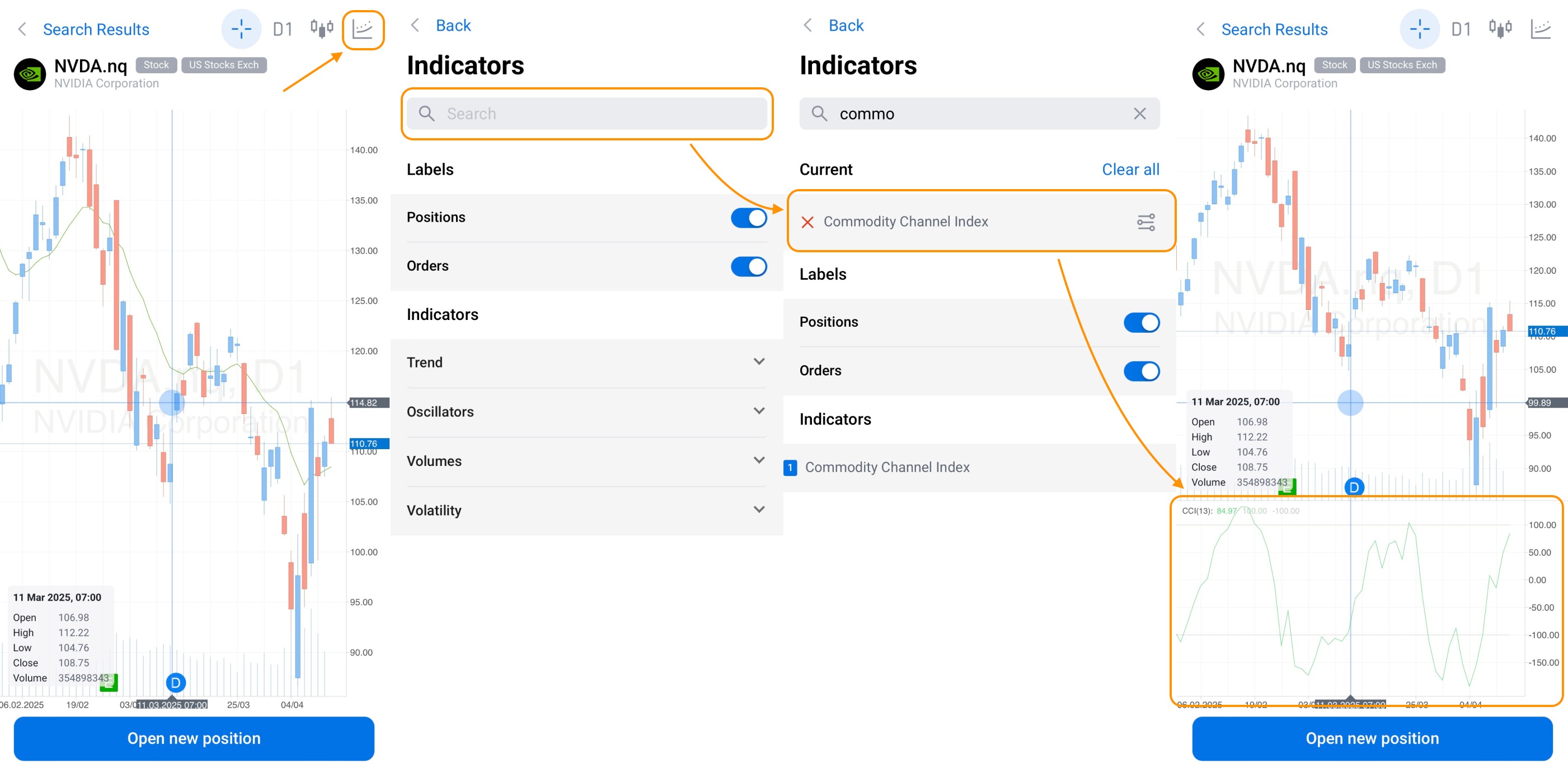
To edit a technical indicator, tap the filters icon next to the indicator's title.